Keep Moonpool in the tray: close, minimize and quit behavior
Tray icon
Section titled “Tray icon”| Action | Result |
|---|---|
| Left-click | Shows the hub window (restores it if minimized or hidden). |
| Right-click | Menu with Show Moonpool and Quit only (in your language). |
With several Moonpool copies running, each has its own tray icon. The tooltip says which copy it is. See Portable mode.
Quit exits Moonpool and, on Windows, stops every app Moonpool launched, including their child processes. Apps that were already running before Moonpool saw them (shown as running without “managed by Moonpool”) are left alone. On Linux, quitting does not reliably stop launched apps.
Closing and minimizing
Section titled “Closing and minimizing”The close button quits Moonpool by default (closeToTray is false). Turn on Close to
tray in Settings and closing hides the window to the tray instead. Moonpool keeps running,
and the tray icon or Show Moonpool brings it back.
Minimize to tray (minimizeToTray, default on) hides the window to the tray when it is
minimized, and it leaves the taskbar. Turn it off to minimize to the taskbar as usual.
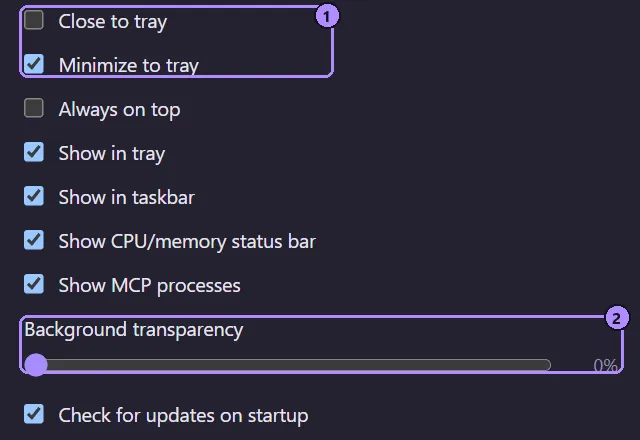
- Close to tray and Minimize to tray.
- Background transparency. See Themes, language and transparency.
Tray and taskbar lockout
Section titled “Tray and taskbar lockout”Show in tray and Show in taskbar control whether the tray icon and the taskbar button are visible. At least one must stay on, otherwise a hidden window would have no way back. When only one is on, its checkbox is disabled until you turn the other back on.
Always on top
Section titled “Always on top”Always on top in Settings keeps every Moonpool window (the hub, Settings, About, the app editor, the theme browser, the installer and Help) above other windows. It is off by default.
See also
Section titled “See also”Moonpool is free software from FasterDB