Update Moonpool and fix a failed update
Moonpool updates itself. There is no separate installer to download and no wizard to click through.
How updates arrive
Section titled “How updates arrive”Moonpool fetches update.json (linux-update.json on Linux) from the project’s GitHub
Releases, compares versions, and only offers a strictly newer one. It checks:
- at startup, unless Check for updates on startup is off in Settings;
- whenever you press Check for updates in the About window. That button installs a newer version straight away and restarts Moonpool. Otherwise it says you are on the latest version, or shows the error.
The About window shows the version you run, under the name:
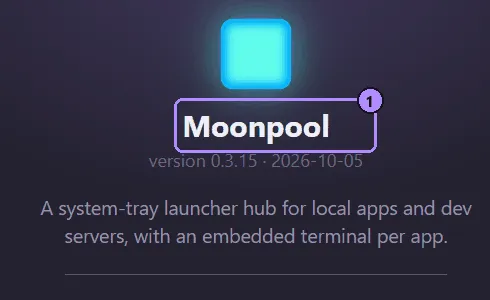
- The name. The line below it is the version and build date.
Every download is verified against Moonpool’s minisign signing key before it is applied, so a tampered or corrupted download is rejected. Moonpool never installs an older version.
The update banner
Section titled “The update banner”At startup, a found update shows as a banner on the hub’s empty screen:
Moonpool {version} is available (you have {current}).The banner shows only while no app tab is open and the CLI pane is expanded. With the pane collapsed, the chevron beside the filter box pulses instead. With a tab open there is no sign at all. To see the banner, close all tabs (and expand the pane), or use Check for updates in the About window.
Click Download & install and Moonpool replaces itself and relaunches, or dismiss the banner with the x.
Portable copies
Section titled “Portable copies”A portable copy updates the moonpool.exe in its own .moonpool\ folder, the same way.
Each copy checks and updates on its own. The folder must be writable, so a copy on a
read-only stick or share cannot update itself; copy a newer moonpool.exe over it by hand.
Only the AppImage updates itself. It replaces the AppImage file in place, so keep it in a
folder you can write to. A .deb or RPM install is updated by your package manager:
installing from Moonpool fails with
automatic updates are available for the AppImage only; update the .deb or RPM with your package managerSee Linux.
When an update fails
Section titled “When an update fails”The banner shows the reason and the button becomes available again so you can retry:
Update failed: <error>| Error contains | Likely cause | What to do |
|---|---|---|
download failed |
No connection, a proxy, or GitHub limiting requests | Wait and retry, or update by hand. |
signature verification FAILED - refusing to install |
The download is corrupt or was changed | Retry. If it keeps failing, update by hand from the Releases page. |
rename self aside or write new exe |
The folder is read-only, or an antivirus holds the file | Make the folder writable, or allow moonpool.exe in your antivirus, then retry. |
refusing to install ... not newer than current |
The offered version is not newer | Nothing to do. |
Updating by hand
Section titled “Updating by hand”Quit Moonpool, download moonpool.exe from the project’s
Releases page, and copy it over the
old one: %USERPROFILE%\.moonpool\moonpool.exe installed, or the one in your .moonpool\
folder for a portable copy. Your config folder is not touched. On Linux, replace the
AppImage, or use your package manager.
Help updates too
Section titled “Help updates too”This help ships inside Moonpool, so each program update brings the matching help with it. The offline copy always matches the version you run.
See also
Section titled “See also”Moonpool is free software from FasterDB