Read the sidebar: status dots, groups, filter and row menu
The sidebar lists every app in apps.json, grouped by each app’s group field. See App fields.
Each row shows a status dot, the app icon (or a type glyph if there is no icon), the name, the port if set (:3000), and controls.
| Dot | Meaning |
|---|---|
| Solid | running |
| Pulsing | starting: Moonpool started the app but it is not detected up yet |
| Grey | stopped |
Hover the dot for the word.
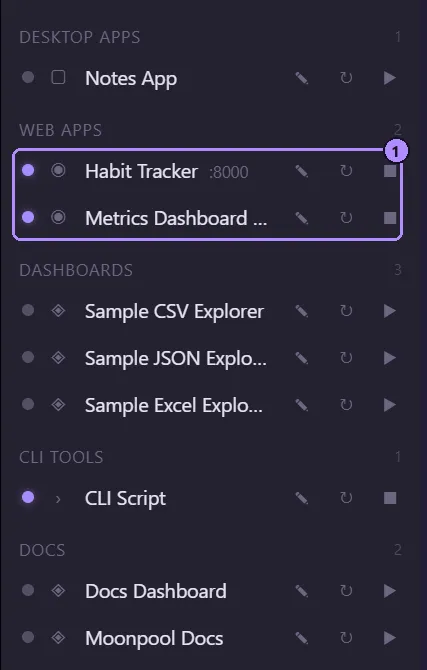
- Two running apps. Their dots are lit and Stop (the square) replaces Launch.
| Control | Does |
|---|---|
| Pencil | Edit the app. |
| Restart | Stop and relaunch. On a stopped app it simply launches it. |
| Launch (play) | Starts the app and opens its terminal tab. Shown when the app is stopped. |
| Stop (square) | Stops the app. Shown while it is running or starting. |

- Status dot (lit while running).
- Type icon.
- Edit (pencil).
- Restart.
- Stop (shown instead of Launch while running).
While a launch or stop is in progress the controls are replaced by a spinner (Working...).
Clicking an app’s name opens or focuses its terminal tab and never launches anything. A tab for a stopped app shows the log from this session. Use Launch or Restart to start it. A static app with only a url and no command has no terminal: Launch opens the URL in your browser.
Tooltip
Section titled “Tooltip”Hovering the name shows the app’s note if it has one, otherwise its name. Set note in the editor or in apps.json.
MCP sub-row
Section titled “MCP sub-row”When an AI client has used an app’s own MCP tools, a dimmed sub-row MCP server appears
under the app. Its dot is lit and the tooltip reads “MCP client attached” while the client
is connected. A stop button ends that process.
The row finds the process by processName plus the mcp argument, or by the app’s
mcpProcessName pattern when one is set. See fields.
Hide these rows with Show MCP processes in Settings. See MCP setup.
Groups
Section titled “Groups”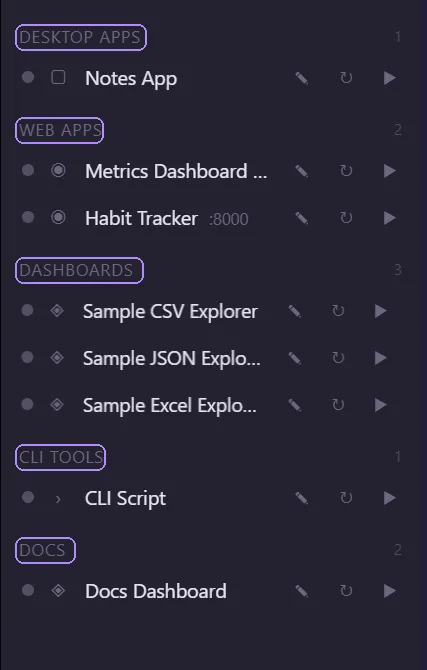
- Click a group heading to collapse or expand it. The count beside it is the number of apps shown. Collapsed groups are remembered.
- Inside a group, the most recently started app is on top. Apps never started keep their
apps.jsonorder. A freshly launched app glows and rises to the top.
Filter box
Section titled “Filter box”Type in Filter apps… to narrow the list. It matches app name and group name, ignoring case. If nothing matches, the list shows:
No apps match "<text>".The app shows curly quotes around the text, here and in the Delete prompt below.
Right-click menu
Section titled “Right-click menu”Right-click a row for:
| Item | Does |
|---|---|
| Edit | Opens the app editor. |
| Rename | Turns the name into an edit field. Enter or clicking away saves, Esc cancels. An empty or unchanged name is ignored. |
| Set icon… | Pick an image file (png, jpg, jpeg, gif, svg, webp, ico) to use as the icon. |
| Delete | Asks Delete "<name>"? and removes the entry from apps.json. If Moonpool is running the app, it is stopped first. |
Esc closes the menu without acting.
Resizing
Section titled “Resizing”Drag the divider between the sidebar and the CLI pane. The width is limited to 180 to 620 px (default 280) and is remembered. The divider is locked while the CLI pane is collapsed. See Terminal tabs.
Moonpool is free software from FasterDB