Change Moonpool settings: every option in Settings and About
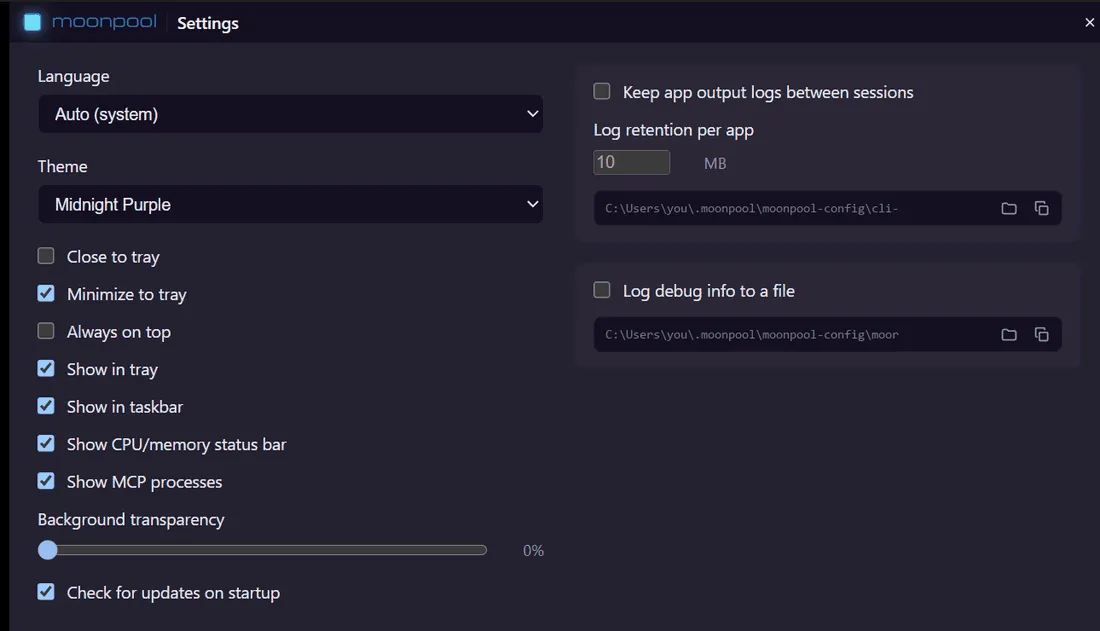
Open Settings from the hub’s “…” menu. Changes save as you make them. Escape closes
the window. This page is the full list of settings. Each one is saved in settings.json
under the key shown; the file itself is described in
settings.json.
Resetting a control
Section titled “Resetting a control”Right-click any checkbox, slider or number field to reset just that setting to its default. The hover tooltip on each control says so. The Language and Theme pickers have no reset.
Left column
Section titled “Left column”| Control | Key | Default | What it does |
|---|---|---|---|
| Language | locale |
Auto (system) | Language of Moonpool’s own text. Applies instantly. See Themes, language and transparency. |
| Theme | none (browser storage) | Auto (system) | Colour theme. The button opens a theme browser with a preview of every theme; clicking one applies it instantly. See Themes, language and transparency. |
| Close to tray | closeToTray |
off | On: closing the window hides Moonpool to the tray. Off: closing quits. |
| Minimize to tray | minimizeToTray |
on | On: minimizing hides Moonpool to the tray and it leaves the taskbar. Off: minimizes to the taskbar. |
| Always on top | alwaysOnTop |
off | Keeps every Moonpool window above other windows. |
| Show in tray | showInTray |
on | Keeps the tray icon visible. |
| Show in taskbar | showInTaskbar |
on | Keeps the taskbar button visible. |
| Show CPU/memory status bar | showStatusbar |
on | Live CPU and memory bar at the bottom of the hub. |
| Show MCP processes | showMcpProcesses |
on | Shows an app’s MCP process as an MCP sub-row in the sidebar while its MCP tools are in use. |
| Background transparency | transparency |
0% | Slider from 0 to 90 in steps of 5. See Themes, language and transparency. |
| Check for updates on startup | checkOnStartup |
on | Checks GitHub for a newer version at launch and shows a banner if one is found. See Updating. |
Tray and taskbar lockout
Section titled “Tray and taskbar lockout”At least one of Show in tray and Show in taskbar must stay on, otherwise a hidden window would have no way back. When only one is on, its checkbox is disabled until you turn the other back on.
Right column: logs
Section titled “Right column: logs”| Control | Key | Default | What it does |
|---|---|---|---|
| Keep app output logs between sessions | cliLogging |
off | The running session’s terminal output is always kept for its own tabs. On: logs from older sessions stay on disk under cli-output\, capped by the retention setting. Off: they are deleted the next time that app launches. |
| Log retention per app | logRetentionMb |
10 MB | Cap on each app’s combined logs. Minimum 1. Disabled while the toggle above is off. The current session’s log counts toward the cap but is never truncated or deleted by it. |
| Log debug info to a file | debugLogging |
off | Records apps.json loads, launches and errors to moonpool.log. |
Under each log group a path field shows the location, with two buttons:
- Reveal opens the folder in the file manager (Reveal CLI log folder for
cli-output\, Reveal log file formoonpool.log). - Copy puts the path on the clipboard (Copy CLI log folder path, Copy log file path).
Log file formats, the restart divider and retention rules are in Logs.
If a checkbox cannot be saved, a red message at the top of the window says so and the checkbox reverts.
About window
Section titled “About window”Open About from the “…” menu.
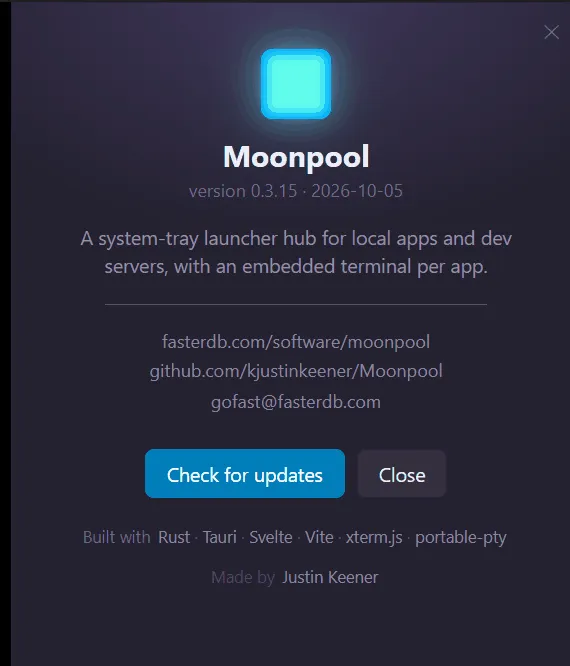
It shows:
- The version and build date.
- Links to the project site, the GitHub repository and the contact address.
- Check for updates. If a newer version exists it downloads, verifies and installs it, then restarts Moonpool. Otherwise it reports that you are on the latest version, or the error if the check failed.
- Credits for the libraries Moonpool is built with, and the author.
Escape closes it. About follows the theme, transparency and language settings live.
Moonpool is free software from FasterDB