Find your way around the Moonpool hub window
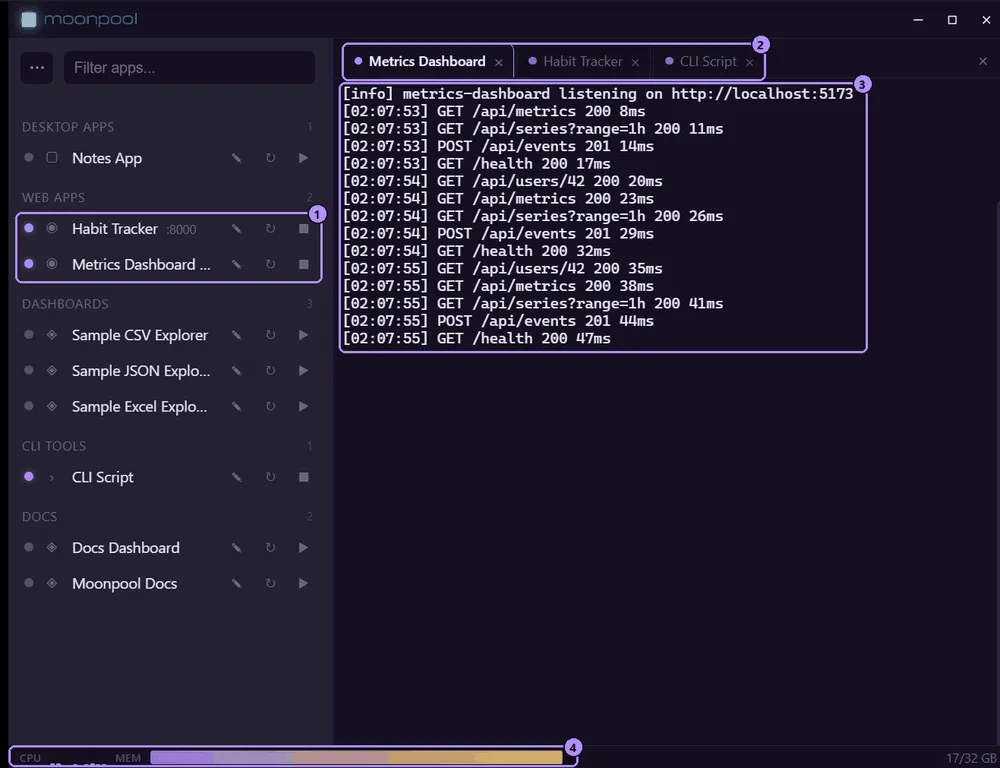
- Two of the running apps: a lit status dot and a stop button instead of play.
- The tab strip, one tab per opened app, with the active tab highlighted.
- Live output from the active app.
- The CPU and memory status bar.
Layout
Section titled “Layout”| Area | What it holds |
|---|---|
| Title bar | Minimize, maximize and close. |
| Sidebar | The filter box, the … menu, and your apps grouped by group. See Sidebar and menus. |
| CLI pane | One terminal tab per opened app. See Terminal tabs. |
| Status bar | Live CPU and memory, along the bottom. |
Drag the divider between the sidebar and the CLI pane to resize the sidebar.
Status bar
Section titled “Status bar”
The status bar shows one thin bar per CPU core (hover for “Per-core CPU usage”), then a
memory bar with a used/total GB label. Turn it off with Show CPU/memory status bar in Settings (showStatusbar; see Settings window). The change applies immediately.
The … menu
Section titled “The … menu”The … button left of the filter box opens the menu.

- The … menu button.
- The Filter apps… box.
| Item | Does |
|---|---|
| Add app | Opens the app editor. See Adding apps. |
| Edit apps.json | Opens apps.json in your default editor for hand editing. |
| Reload | Re-reads apps.json from disk (also F5, see Shortcuts and zoom). |
| Settings | Opens the Settings window. |
| Help | Opens this help. |
| About | Opens the About window, with the version and update check. |
| Install Moonpool… | Windows only. Opens the installer window, to install the app or make a portable copy. See Installing and Portable mode. |
Port conflict warning
Section titled “Port conflict warning”If two apps in apps.json use the same port, a warning row appears at the bottom of the menu, for example:
port 3000: App A / App BHover it for the full sentence. Fix the clash in apps.json or the app editor; the row disappears once no port is shared.
When apps.json has an error
Section titled “When apps.json has an error”If Reload (or F5) finds that apps.json no longer parses or validates, Moonpool keeps the
list it already had. A banner at the top of the sidebar says “apps.json has an error,
showing the last list that loaded”, followed by the error (hover it for the full text). The
list below is dimmed but still works, so you can start and stop apps as usual. Edit
apps.json in the banner opens the file; fix it and choose Reload, and the banner goes
away.
Until the file loads again, Moonpool will not save changes from the app editor, rename, delete or set icon, so a bad file is never overwritten.
If the file is already broken when Moonpool starts, there is no earlier list to keep: the banner says no apps are loaded and the sidebar is empty. Fix the file and reload, or roll back to a recent good copy (see If the file is bad).
Empty screen
Section titled “Empty screen”With no tab open, the CLI pane shows “Pick an app on the left to launch it.” It also holds two things that appear only while no tab is open:
- The update banner, when a newer version was found at startup. See Updating.
- Copy prompt, a ready-made prompt that hands setting up your apps to an AI agent. See AI agents: quick start.
The tray icon, closing, minimizing, Quit and always on top are on Tray, close and minimize.
Size, position and maximized state
Section titled “Size, position and maximized state”Moonpool remembers the hub window’s size, position and maximized state between runs. The first run opens at 1200x780, at the position Windows picks.
If the saved position is no longer on any connected display (for example an unplugged
monitor), the position is ignored and the saved size is used at the default location. The
file is window-state.json in the config folder (see
Where the config lives).
The sidebar width and whether the CLI pane is collapsed are remembered too.
Moonpool is free software from FasterDB